
MG Enrolment Steps
Before you start
You will need to create a second MG account using a different email address. Invite that account as a "Guest" to your vehicle in the MG app. There are two types of access: temporary and permanent – please use the permanent. Use the “Guest” credentials to link to Amber.
Using your primary MG account will cause frequent log-outs which may result in unexpected charging behaviour which is the reason why we recommend this process.
Enrolment steps
- Open the Amber app and go to the Devices tab (second icon along the bottom).
- From here, the next step depends on whether you already have a device linked:
- No devices linked yet: tap Automate EV Charging.
- Already have a device: tap Devices in the top left, then under More tap Add another device, then tap Automate EV Charging.
- Tap MG.
- Review and confirm the tick boxes.
- Tap Begin Linking. This will prompt you to confirm the pairing in the MG app. You want to link with the “Guest” account you made above.
- Let Amber know about your current charging setup.
- Complete the automated checks.
- Wait for a notification confirming your EV charging is ready.
- Tap Finish Setup to get started.
- Enable EV Automation and configure your Charging Controls.
Common problems
Amber has lost connection with your EV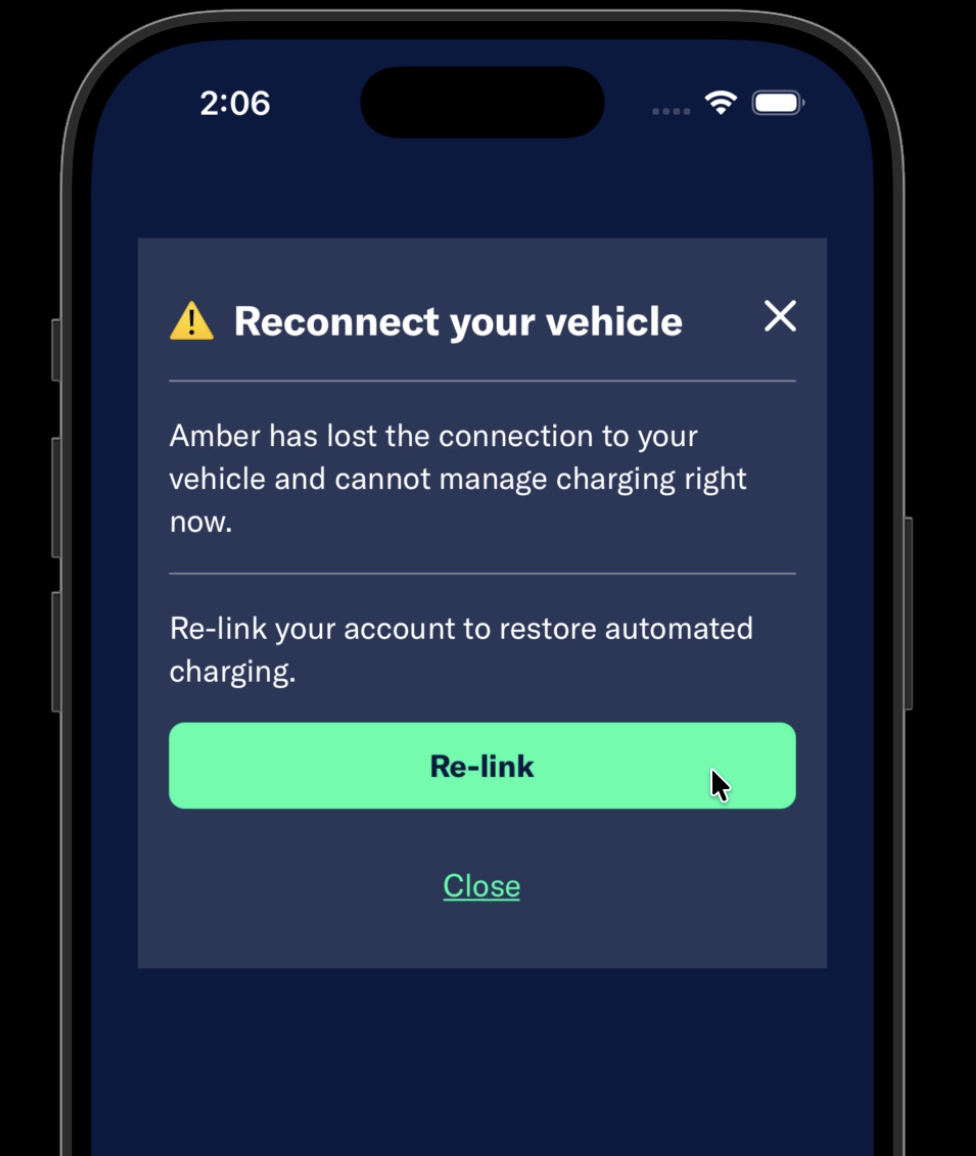
If you can see this error, that means Amber has lost connection with your vehicle and you will need to reconnect it to Amber.
Until you do this, Amber cannot control charging with your EV.
Follow the links to use the enode service to re-link your EV to Amber - the required permissions will be displayed along with the option to accept and continue.
Follow through the prompts to ensure your vehicle is connected until you see a confirmation the linking is complete.
Comments
Article is closed for comments.